Now that I knew the basics of animating in Unreal Engine, I wanted to find some more advanced settings I could work with. I found various settings I could tweak by watching the youtube video How I get UNREAL ENGINE to look like a movie | FULL BREAKDOWN (pwnisher, 2021) and also reading through the Unreal Documentation. The techniques demonstrated in this post are a representation of what will be used in the final animation.
I started by building a simple landscape and populating it with assets from the Rural Australia (2021) asset pack as well as the APC M113 (West) (2021) prop. I then used the console to set the frame rate to 24 frames per second and also added the thunder and rain system I documented in my previous blog post.
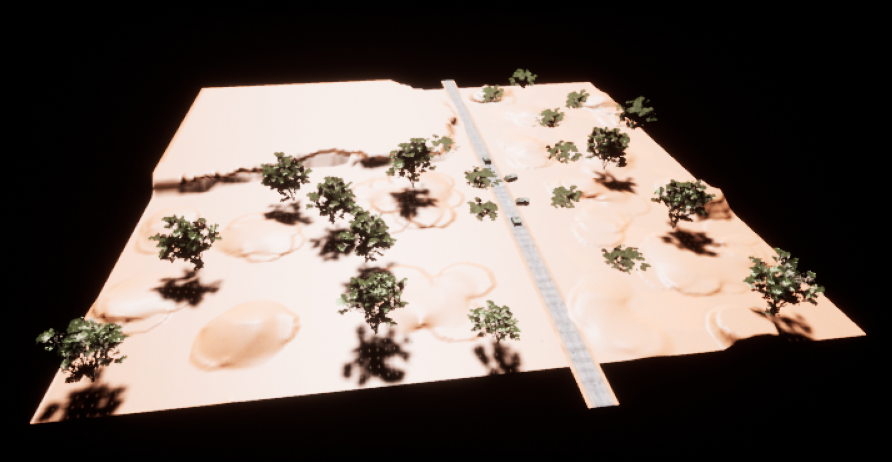
After I had built the scene, I added a skylight altered the values to create a dark environment. I then added exponential height fog and enabled volumetric fog. I also set the emissive of the volumetric fog to orange so that it would match the environment I had built. I then added spot lights in the locations of the headlights of the APCs and increased the intensity slightly.
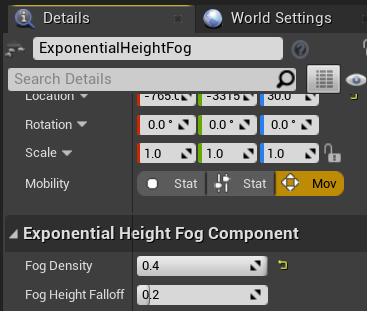
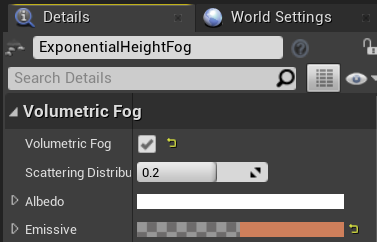
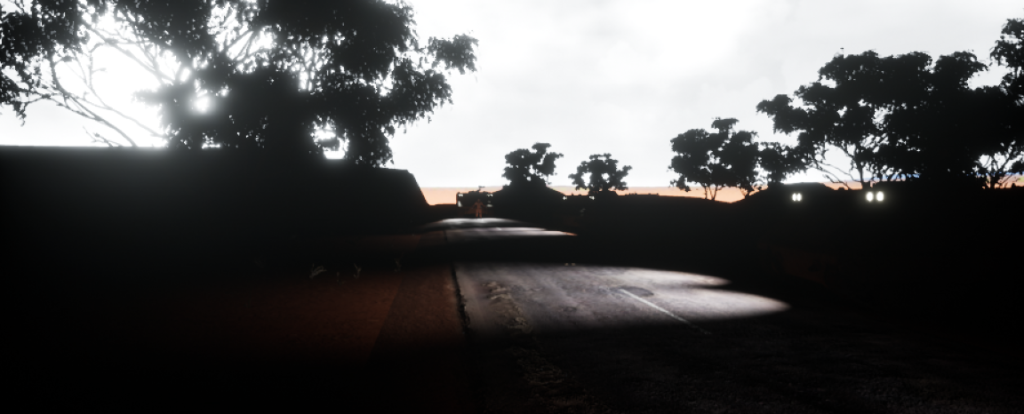
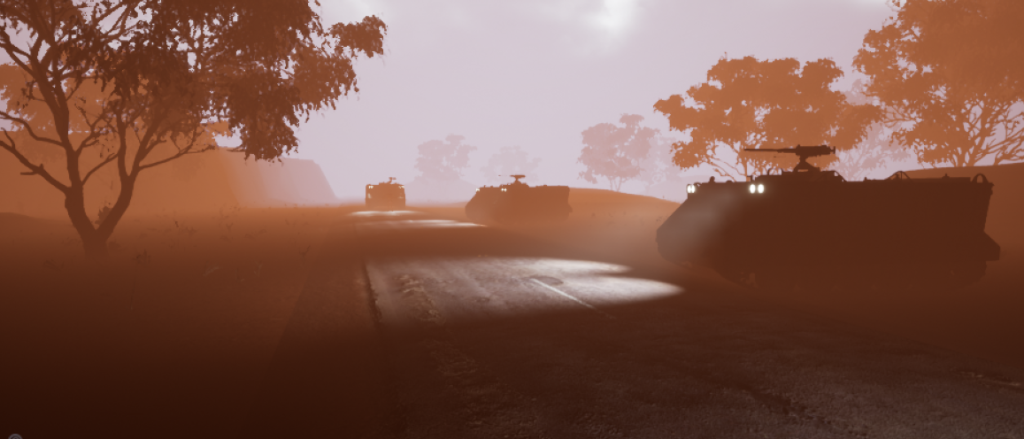
Two images of the scene I built. The left doesn’t have the exponential height fog enabled, the right does. This casts an orange fog over the atmosphere. The lights in the scene can be seen shining through it.
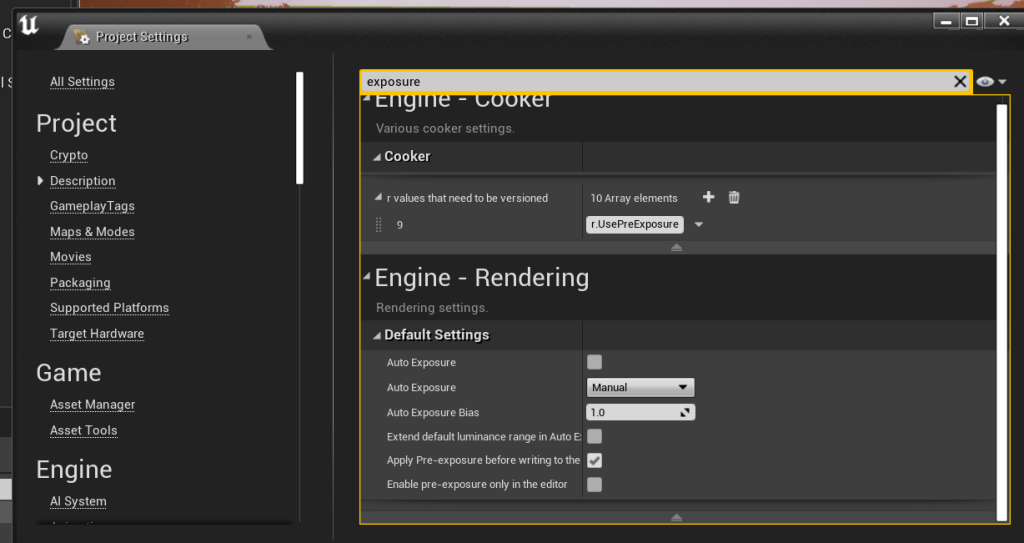
Before I continued I disabled auto exposure and set auto exposure to manual. Auto exposure would automatically change the exposure in a scene based on current lighting, I wanted to have manual control of this so disabled the feature.
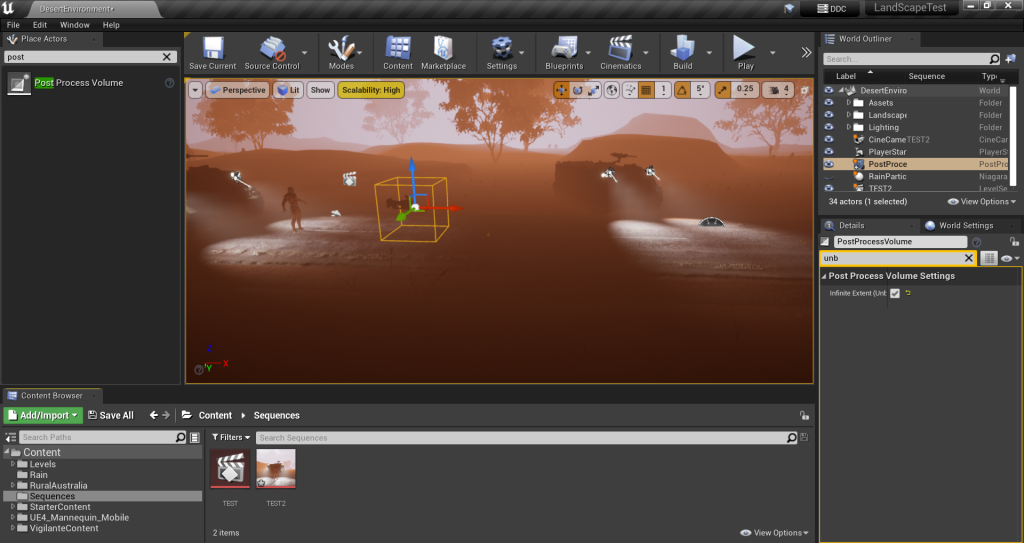
The next thing I did was add the post processing volume, this allowed me to alter various elements of the entire scene such as motion blur and bloom. The first thing I did was set the post processing volume to unbound so that it would effect the entire scene.
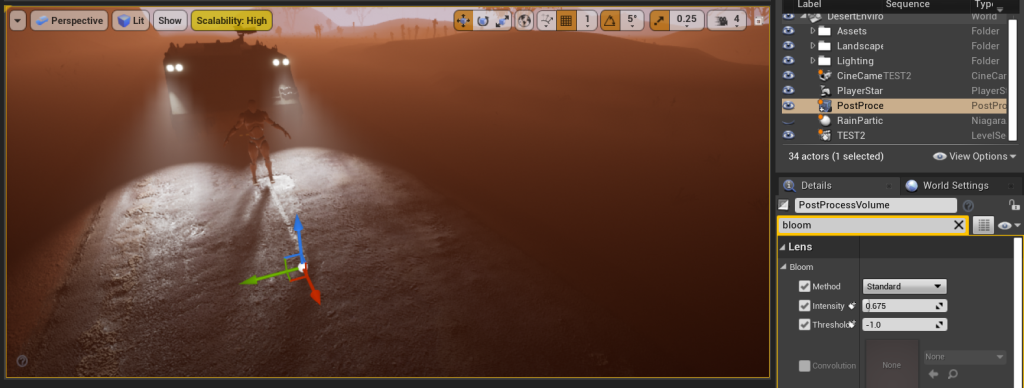
I then enabled bloom, adjusting it slightly. I also added a slight vignette and added a small amount of grain.
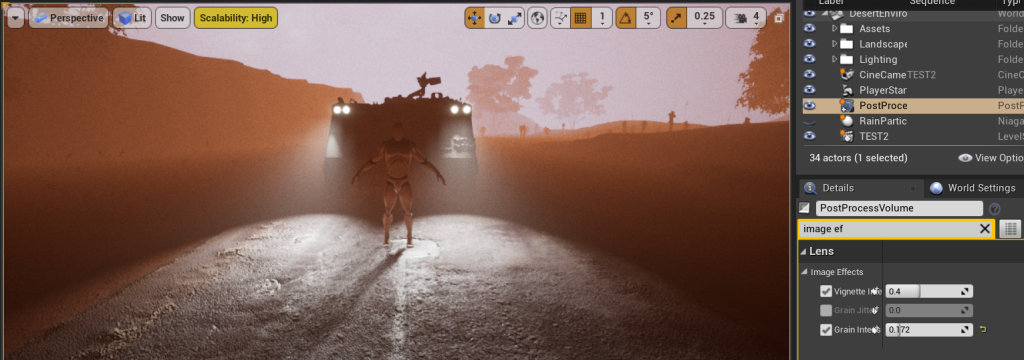
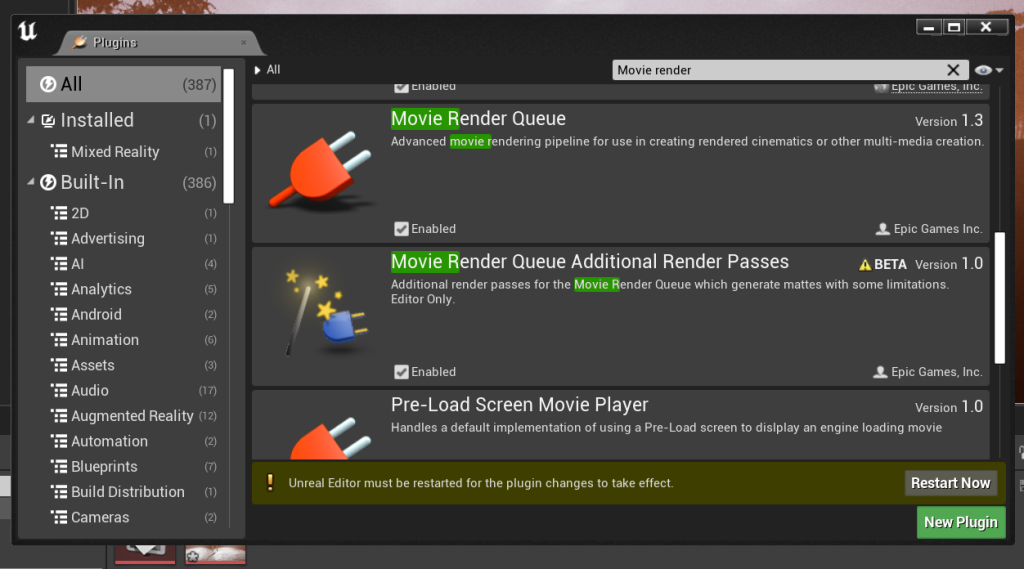
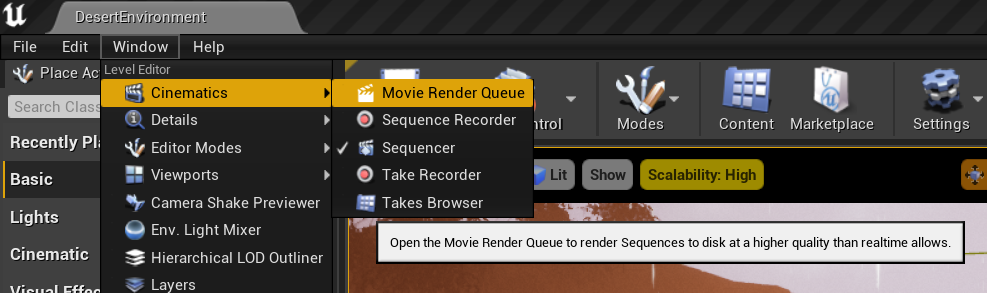
After adding the post processing volume, I added the cine cam and went through the process of setting up the sequencer and key frames to record a short animation using the new settings I had added. I then moved to render the short animation. I rendered the animation using the Movie Render plug-in. I had to enable this before I could use it.
I then opened the renderer and added the animation sequence I had created.
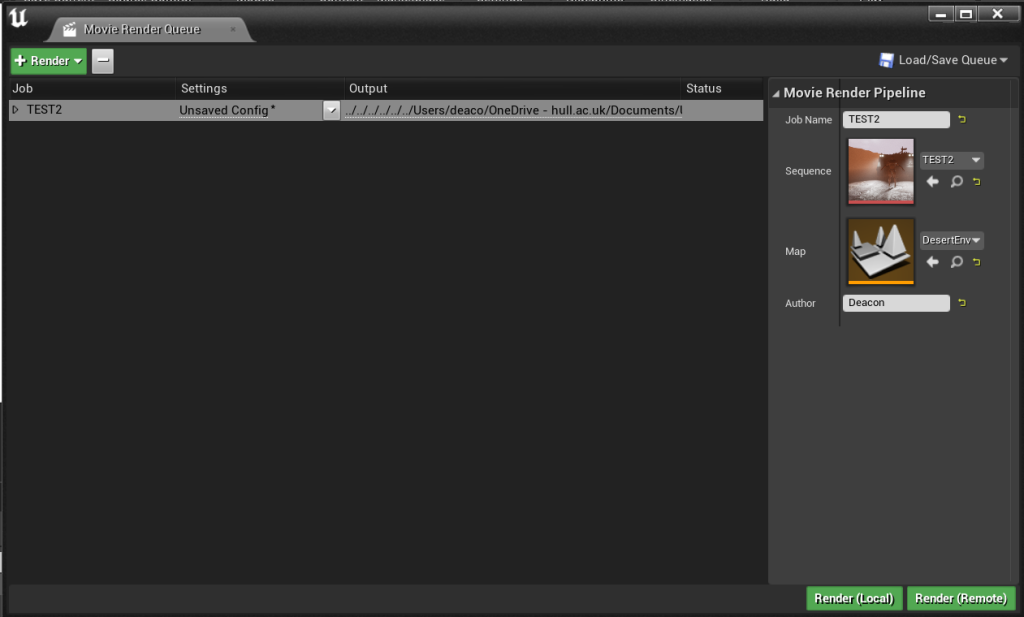
Once the sequence was added, I moved into export settings so that I could alter them.
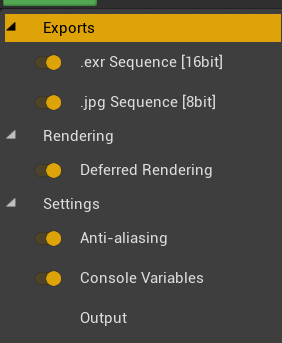
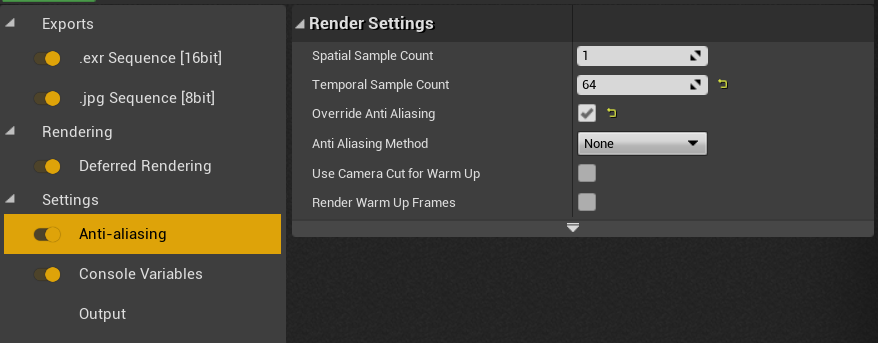
The first setting I added was anti-aliasing. This would cause jagged lines to be smoothed in rendering.
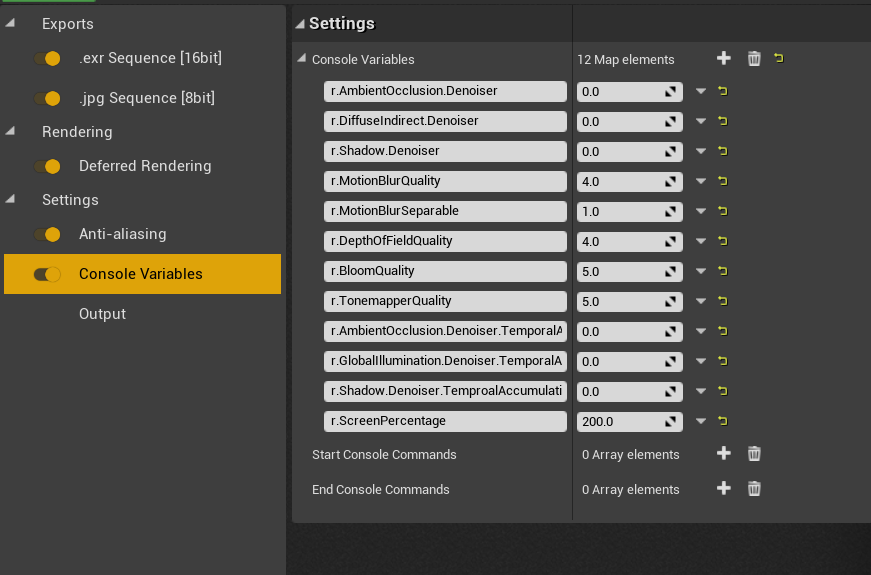
Next, following the steps given by pwnisher (2021), I added console variables that would increase the quality of the scene during rendering. The first few commands simply reduce the noise and increase the quality of listed elements. Screen percentage being set to 200 means that the sequence will be rendered at twice the quality it would regularly be. It will then be lowered to the specific resolution I set.
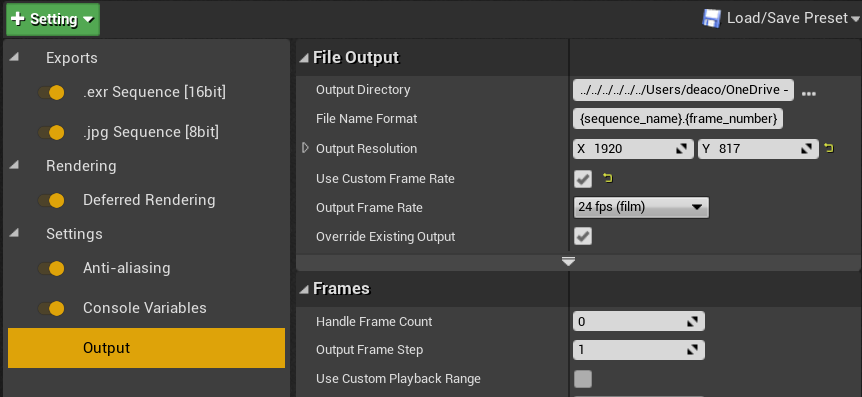
Finally, I specified the output resolution, matching it to the cine cam’s resolution, and also the custom frame rate of the sequence.
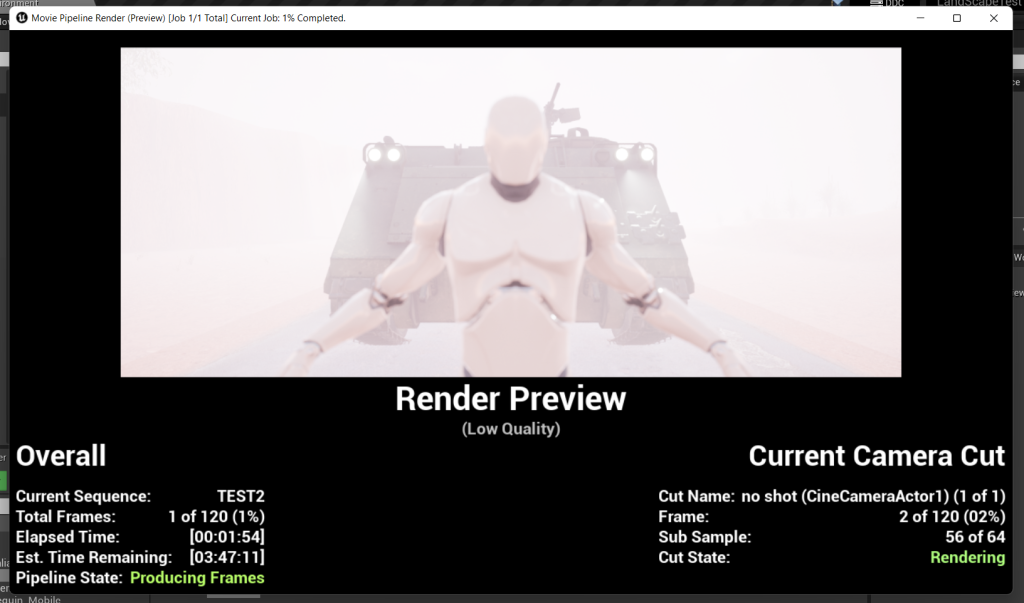
I then rendered the sequence.
After rendering out the sequence, I took the image sequence into a video editing software and rendered it then cut it down slightly.
Although this is an extremely simple clip, I found it to be much higher quality than previous attempts I had made when testing out cine cam and post production features.
References:
Epic Games (2021) Unreal Documentation [Webpage] Available online: https://docs.unrealengine.com/5.1/en-US/ [Accessed 02/12/2022]
Hamilton, A. S. (2021) Rural Australia [Asset Pack] Available online: https://unrealengine.com/marketplace/en-US/product/rural-australia [Accessed 30/11/2022]
pwnisher (2021) How I get UNREAL ENGINE to look like a movie | FULL BREAKDOWN [Youtube] Available online: https://www.youtube.com/watch?v=FdtTthV_sXI [Accessed 02/12/2022]